
Today we are going to use Ansible to create DHCP (Dynamic Host Configuration Protocol) Ranges in Infoblox. If you haven’t done so, please review the previous post on “Getting started with Infoblox and Ansible.” We are going to create a new container “10.1.0.0/16”; two new templates, one for “Range Template” and the second for “Network Template” with “Range Template” added to it.
How Do You Create Network and DHCP Range Templates in Infoblox?
Create a /16 in the UI of Infoblox
Create a DHCP Range Template
Create a Network Template
Now that we have created 10.1.0.0/16 container and Templates, let’s work on our Ansible playbook.
How Do You Use Ansible’s URI Module to Call the Infoblox WAPI?
We are going to use the URI (Uniform Resource Identifier) module since the current Ansible module does not support DHCP range creation with DHCP Failover. Let’s get started with URI module and the Infoblox “func:nextavailablenetwork” API call. Create a new YAML playbook and call it “uri1.yml” (again I’m not that creative):
---
- hosts: localhost
  connection: local
  tasks:

  - name: Get the next available network from 10.1.0.0/16
    uri:
      url: "https://192.168.0.200/wapi/v2.7/network"
      method: POST
      user: admin
      password: infoblox
      status_code: 201, 302, 200
      headers:
          Content-Type: "application/json"
      body:
        network: "func:nextavailablenetwork:10.1.0.0/16,default,24"
      body_format: json
      validate_certs: no
      return_content: yes
    register: data

  - name: Display new network
    debug:
      var: data.json
Let me explain the above code:
- Line 8 – this is the URL we are going to use to make the API call to get the network from my GM (192.168.0.200)
- Line 9 – method POST – this will create a new network
- Line 10 and 11 – Username and Password, this is usually a bad practice but I’m using it as an example. You can find additional information here about using Ansible Vault
- Line 16 – We are going to use the “Function” called “next available network” in WAPI (Web API). This will ask for the next network and return it for us to use.
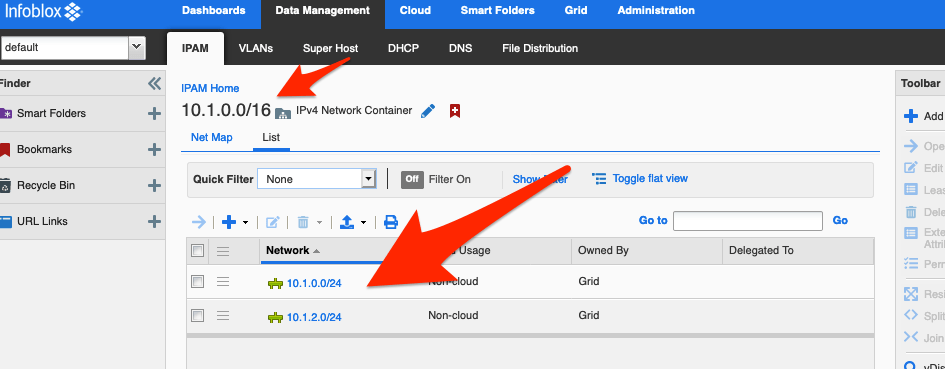
Let’s run our playbook and look at the results:
$ ansible-playbook uri1.yml

PLAY [localhost] *********************************************************************************************************

TASK [Gathering Facts] ***************************************************************************************************
ok: [localhost]

TASK [Get the next available network from 10.1.0.0/16] *******************************************************************
ok: [localhost]

TASK [Display new network] ***********************************************************************************************
ok: [localhost] => {
    "data.json": "network/ZG5zLm5ldHdvcmskMTAuMS4xLjAvMjQvMA:10.1.1.0/24/default"
}

PLAY RECAP ***************************************************************************************************************
localhost                  : ok=3    changed=0    unreachable=0    failed=0    skipped=0    rescued=0    ignored=0
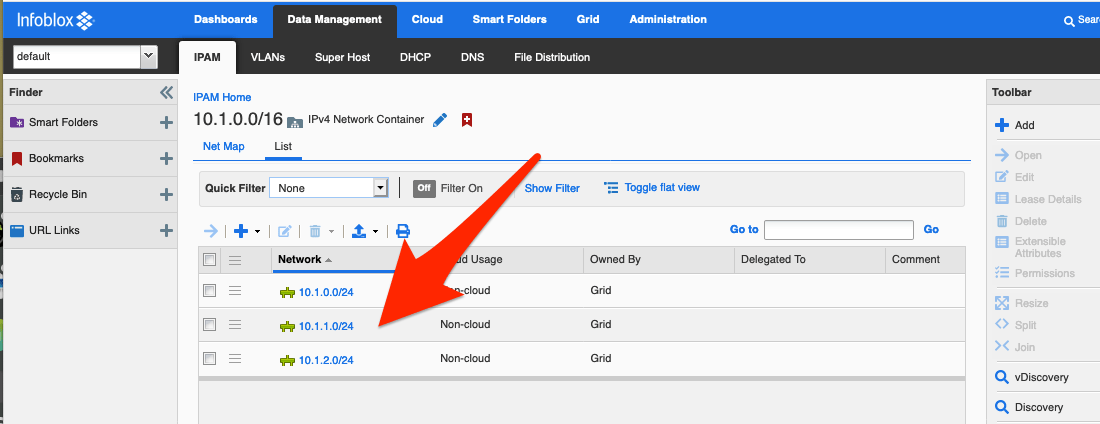
NOTE: the above it gives us “10.1.1.0/24”, let’s check what the UI looks like:
How Do You Create Networks and DHCP Ranges from Infoblox Templates with Ansible?
If you haven’t already done so, please follow the videos above to create the “templates” we are going to use in the next playbook.
Let’s create a new Ansible Playbook for creating a Network and DHCP range in one playbook name it “create_a_new_dhcp_range.yml”:
---
- hosts: localhost
  connection: local
  tasks:

  - name: Get the next available network from 10.1.0.0/16
    uri:
      url: "https://192.168.0.200/wapi/v2.7/network"
      method: POST
      user: admin
      password: infoblox
      status_code: 201, 302, 200
      headers:
          Content-Type: "application/json"
      body:
        network: "func:nextavailablenetwork:10.1.0.0/16,default,24"
        template: "Network24User"
      body_format: json
      validate_certs: no
      return_content: yes
    register: data

  - name: Network and DHCP range created with Template Network24User
    debug:
      var: data.json
Notice the playbook is almost the same except for line 17, where we added “template” to the “body” of the API call. Let’s run it and see the results:
$ ansible-playbook create_a_new_dhcp_range.yml

PLAY [localhost] ************************************************************************************************

TASK [Gathering Facts] ******************************************************************************************
ok: [localhost]

TASK [Get the next available network from 10.1.0.0/16] **********************************************************
ok: [localhost]

TASK [Network and DHCP range created with Template Network24User] ***********************************************
ok: [localhost] => {
    "data.json": "network/ZG5zLm5ldHdvcmskMTAuMS4zLjAvMjQvMA:10.1.3.0/24/default"
}

PLAY RECAP ******************************************************************************************************
localhost                  : ok=3    changed=0    unreachable=0    failed=0    skipped=0    rescued=0    ignored=0
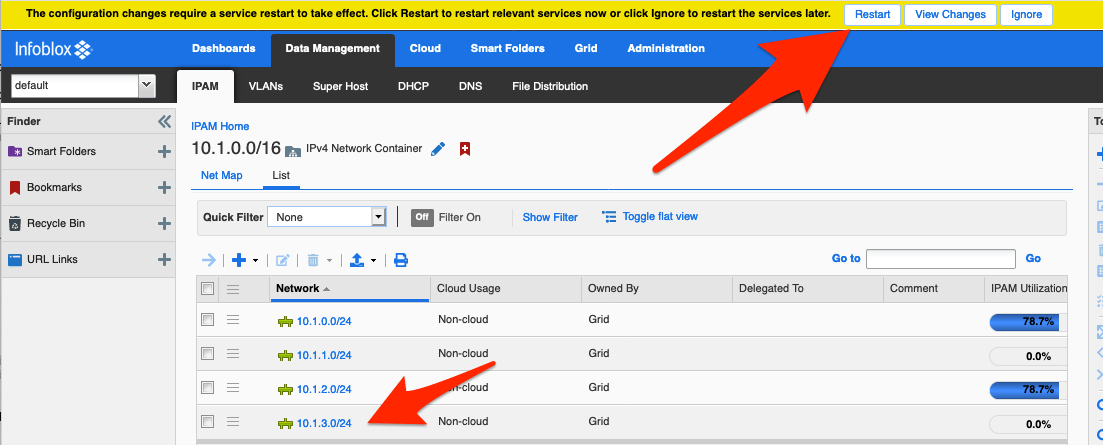
The above shows that “10.1.3.0/24” was created, so let’s see what the UI shows:
Now let’s take a look at the DHCP Range:
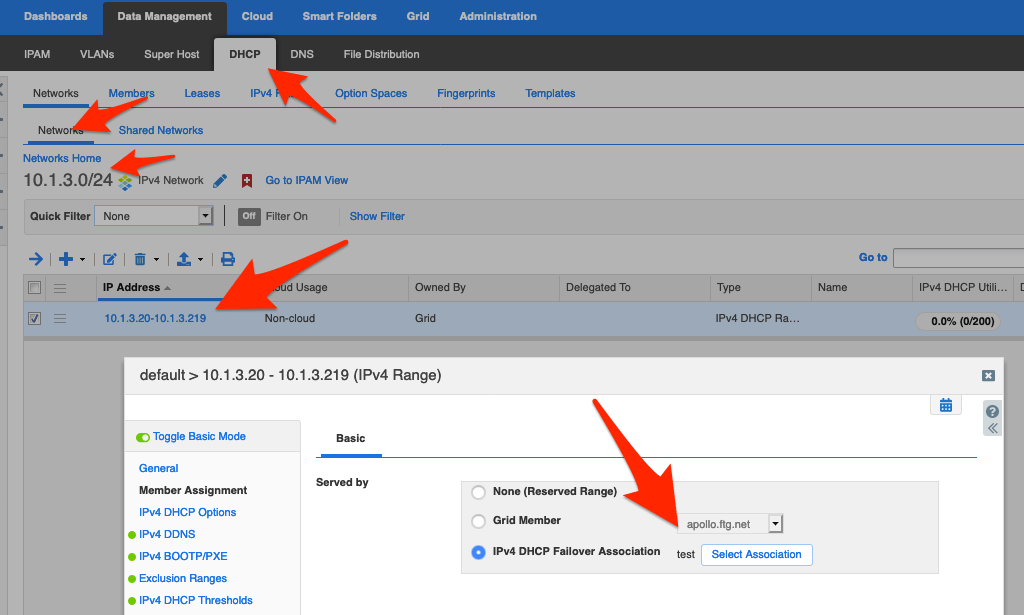
Unfortunately, we have a “glitch” in our full automation of a network with DHCP Range. We have to restart services, so let’s add the option to do that to our playbook. Edit the above playbook to look like below:
---
- hosts: localhost
  connection: local
  tasks:

  - name: Get the next available network from 10.1.0.0/16
    uri:
      url: "https://192.168.0.200/wapi/v2.7/network"
      method: POST
      user: admin
      password: infoblox
      status_code: 201, 302, 200
      headers:
          Content-Type: "application/json"
      body:
        network: "func:nextavailablenetwork:10.1.0.0/16,default,24"
        template: "Network24User"
      body_format: json
      validate_certs: no
      return_content: yes
    register: data

  - name: Network and DHCP range created with Template Network24User
    debug:
      var: data.json

  - name: Restart Services
    uri:
      url: "https://192.168.0.200/wapi/v2.7/grid/b25lLmNsdXN0ZXIkMA:Infoblox?_function=restartservices?services=DHCP"
      method: POST
      user: admin
      password: infoblox
      status_code: 201, 302, 200
      validate_certs: no
We added a second task that will restart services in Infoblox. Now let’s run this playbook and see the results:
$ ansible-playbook create_a_new_dhcp_range.yml

PLAY [localhost] ************************************************************************************************

TASK [Gathering Facts] ******************************************************************************************
ok: [localhost]

TASK [Get the next available network from 10.1.0.0/16] **********************************************************
ok: [localhost]

TASK [Network and DHCP range created with Template Network24User] ***********************************************
ok: [localhost] => {
    "data.json": "network/ZG5zLm5ldHdvcmskMTAuMS40LjAvMjQvMA:10.1.4.0/24/default"
}

TASK [Restart Services] ***************************************************************************************
ok: [localhost]

PLAY RECAP ******************************************************************************************************
localhost                  : ok=4    changed=0    unreachable=0    failed=0    skipped=0    rescued=0    ignored=0
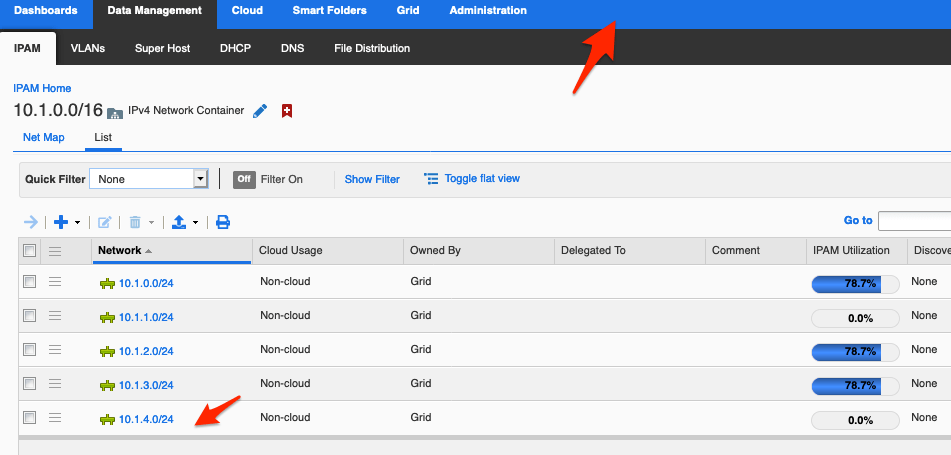
As we can see, the playbook completed without any issues. Let’s log into the UI and see if we have to restart services:
How Easy Is It to Automate DHCP Range Creation with Ansible and Infoblox?
As you can see, it’s easy to create “Networks” and “DHCP Ranges” in Infoblox with Ansible playbooks.
Files are located here: GitHub
Recommended Reading
Want to dig deeper into Infoblox automation — with Ansible or Python?
- Infoblox and Ansible using “nios_next_ip” — Retrieve the next available IP and auto-create host records in a single playbook.
- Infoblox and Ansible Updating a CNAME via Playbook — Use the Ansible URI module to GET a record reference and PUT an update — the same pattern works for any WAPI object.
- Introduction to Infoblox API (WAPI) using Python — The Python equivalent of what you just did: use
requestsandinfoblox-clientto manage Infoblox without Ansible. - The Ultimate Guide to Infoblox DDI WAPI Examples — Quick curl reference for DNS zones, DHCP scopes, and record operations via the WAPI.
Frequently Asked Questions
Why does this playbook use the uri module instead of a native nios_* Ansible module?
The native nios_* modules don’t support creating DHCP ranges with DHCP Failover. The uri module lets you make raw HTTP calls directly to the Infoblox WAPI, which supports the full API surface — including the func:nextavailablenetwork function and template-based network creation.
What does func:nextavailablenetwork do in the Infoblox WAPI?
It’s a WAPI function that automatically selects the next available network from a specified container and CIDR prefix length. Passing "network": "func:nextavailablenetwork:10.1.0.0/16,default,24" in the POST body tells Infoblox to pick the next free /24 from the container instead of requiring you to specify an address manually.
Why do you need to restart services after creating a DHCP range via the API?
Infoblox DHCP changes require a service restart before they take effect on member appliances. The playbook handles this by sending a POST to /wapi/v2.7/grid/<_ref>?_function=restartservices after the creation task — automating what would otherwise be a manual click in the Infoblox UI.
Comments
No comments yet — be the first to share your thoughts.