We are going to take a look at Infoblox and infoblox-client using Python. In this article, I am going to give you examples using Python with direct “requests” REST (Representational State Transfer) API — known as WAPI (Web API) in Infoblox — calls and the “infoblox-client” so you can choose with the option you prefer. The “infoblox-client” simplifies interactions with Infoblox NIOS (Network Identity Operating System) via WAPI, providing a preconfigured list of the most commonly used database objects, regex search capabilities, and predictable human-readable output. In this article, I will cover how to list all Grid members using both the REST and Client module.
In upcoming blog articles I will cover the following:
- Searching – host, IPs, networks and also regex
- Next available Network
- Next available IP
- DHCP Range with Templates
- feel free to comment on anything else you would like me to post as well
How Do You Set Up Python to Work with the Infoblox WAPI?
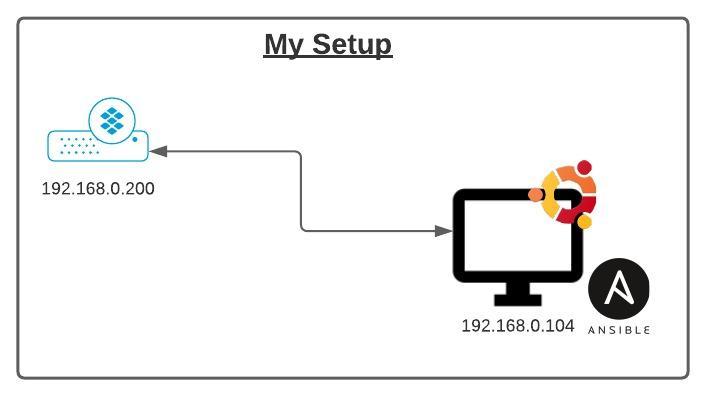
If you don’t have Python installed, please follow this guide. I’m going to be using Ubuntu 20.04 with Python, using the following version, and we will need to install pip since it’s not shipped with Ubuntu:
sbaksh:~$ python3 -V
Python 3.8.2

sbaksh:~$ sudo apt install python3-pip
Reading package lists... Done
Building dependency tree
Reading state information... Done
The following additional packages will be installed:
  libexpat1-dev libpython3-dev libpython3.8 libpython3.8-dev libpython3.8-minimal libpython3.8-stdlib
  python3-dev python3.8 python3.8-dev python3.8-minimal zlib1g-dev
...
Let’s install the needed modules that we will use, “requests” and “infoblox-client”:
sbaksh:~$ pip3 install requests

sbaksh:~$ pip3 install infoblox-client
Once those are installed we can get started writing some code.
How Do You Query the Infoblox WAPI Using Python’s requests Module?
Let’s create a directory to store our Python scripts:
sbaksh:~$ mkdir python

sbaksh:~$ cd python
Now create our first script called “get_members.py”, from the command line let’s run “nano get_members.py”:
import requests

url = "https://192.168.0.200/wapi/v2.7/member"

gm_user = 'admin'
gm_pwd = 'infoblox'

response = requests.get(url, auth=(gm_user, gm_pwd))

print(response.text.encode('utf8'))
Now run the above script “python3 get_members.py” and take a look at the results:
sbaksh:~/python$ python3 get_members.py
Traceback (most recent call last):
  File "/usr/lib/python3/dist-packages/urllib3/connectionpool.py", line 665, in urlopen
   ...
requests.exceptions.SSLError: HTTPSConnectionPool(host='192.168.0.200', port=443):
 Max retries exceeded with url: /wapi/v2.7/member (Caused by
 SSLError(SSLCertVerificationError(1, '[SSL: CERTIFICATE_VERIFY_FAILED] certificate
 verify failed: self signed certificate (_ssl.c:1108)')))
What the above means is we need to add some more code to ignore the SSL (Secure Sockets Layer) signed cert that is running on the appliance. If you have loaded a valid CA (Certificate Authority) cert on the appliance you won’t get this error message. Ok, so how do we fix it? We need to add “verify=False” to the above code. This will tell request to ignore the cert (NOTE: In production, this is not best practice):
import requests

url = "https://192.168.0.200/wapi/v2.7/member"

gm_user = 'admin'
gm_pwd = 'infoblox'

response = requests.get( url, verify=False, auth=(gm_user, gm_pwd))

print(response.text.encode('utf8'))
Now let’s run the above and look at the results “python3 get_members.py”:
sbaksh:~/python$ python3 get_members.py
/usr/lib/python3/dist-packages/urllib3/connectionpool.py:999:
InsecureRequestWarning: Unverified HTTPS request is being made to host
 '192.168.0.200'. Adding certificate verification is strongly advised. See:
 https://urllib3.readthedocs.io/en/latest/advanced-usage.html#ssl-warnings
  warnings.warn(
b'[\n    {\n        "_ref": "member/b25lLnZpcnR1YWxfbm9kZSQw:zues.ftg.net", \n
        "config_addr_type": "IPV4", \n        "host_name": "zues.ftg.net", \n
 "platform": "VNIOS", \n        "service_type_configuration": "ALL_V4"\n    }, \n    {\n
 "_ref": "member/b25lLnZpcnR1YWxfbm9kZSQx:hermes.ftg.net", \n        "config_addr_type":
 "IPV4", \n        "host_name": "hermes.ftg.net", \n        "platform": "VNIOS", \n
  "service_type_configuration": "ALL_V4"\n    }, \n    {\n        "_ref":
 "member/b25lLnZpcnR1YWxfbm9kZSQy:apollo.ftg.net", \n        "config_addr_type": "IPV4", \n
 "host_name": "apollo.ftg.net", \n        "platform": "VNIOS", \n
 "service_type_configuration": "ALL_V4"\n    }\n]'
We have data, but it looks ugly, with some strange warning at the top. The “warning” is for the certificate problem I mentioned before. Now let’s add “requests.packages.urllib3.disable_warnings()” and run the code again. Also, I wanted to make the output a little easier to read, so we are going to remove the “.encode(‘utf8’)” and just print out the return text from the “requests” call:
import requests
requests.packages.urllib3.disable_warnings()

url = "https://192.168.0.200/wapi/v2.7/member"

gm_user = 'admin'
gm_pwd = 'infoblox'

response = requests.get( url, verify=False, auth=(gm_user, gm_pwd))

print(response.text)
sbaksh:~/python$ python3 get_members.py
[
{
"_ref": "member/b25lLnZpcnR1YWxfbm9kZSQw:zues.ftg.net",
"config_addr_type": "IPV4",
"host_name": "zues.ftg.net",
"platform": "VNIOS",
"service_type_configuration": "ALL_V4"
},
{
"_ref": "member/b25lLnZpcnR1YWxfbm9kZSQx:hermes.ftg.net",
"config_addr_type": "IPV4",
"host_name": "hermes.ftg.net",
"platform": "VNIOS",
"service_type_configuration": "ALL_V4"
},
{
"_ref": "member/b25lLnZpcnR1YWxfbm9kZSQy:apollo.ftg.net",
"config_addr_type": "IPV4",
"host_name": "apollo.ftg.net",
"platform": "VNIOS",
"service_type_configuration": "ALL_V4"
}
]Now let’s make the output look a bit prettier. Let’s say we just want the “host_name” of all our members. We can modify the “get_members.py” to add “JSON” so we can parse the text and just print the “host_name”:
import requests
import json
requests.packages.urllib3.disable_warnings()

url = "https://192.168.0.200/wapi/v2.7/member"

gm_user = 'admin'
gm_pwd = 'infoblox'

response = requests.get( url, verify=False, auth=(gm_user, gm_pwd))

members = json.loads(response.text)

for member in members:
    print (member['host_name'])
Let’s run this and see the results:
sbaksh:~/python$ python3 get_members.py
zues.ftg.net
hermes.ftg.net
apollo.ftg.net
That’s the magic of Python Requests and Infoblox! Let’s take a look at using the “infoblox-client” for the same thing.
How Do You Query Infoblox Using the infoblox-client Python Module?
We installed the Python module needed in the “Getting Started”, now let’s create a script called “get_ic_members.py”
from infoblox_client import objects
from infoblox_client import connector
import urllib3
urllib3.disable_warnings()

opts = {'host': '192.168.0.200', 'username': 'admin', 'password': 'infoblox'}
conn = connector.Connector(opts)

members = conn.get_object('member')
for member in members:
    print(member['host_name'])
Notice the code above is very similar to using the “requests” module. This is because the “infoblox-client” is using the “requests” module, it’s just hiding all the other stuff to make it a bit easier for you.
sbaksh:~/python$ python3 get_ic_members.py
zues.ftg.net
hermes.ftg.net
apollo.ftg.net
As you can see, the difference between the two are not that different, but you will see in future articles how it can get complicated if you do not use the client.
The next article will be on “How to search for data in Infoblox via “infoblox-client” and “requests”. Feel free to leave a comment on something you would like to see as well.
Frequently Asked Questions
Why does the Infoblox WAPI return an SSL certificate error by default in Python?
Infoblox appliances ship with a self-signed SSL certificate. Python’s requests library validates certificates by default and raises an SSLError when it encounters a self-signed cert. Fix it by adding verify=False to your request and suppressing the warning with requests.packages.urllib3.disable_warnings(). In production, load a valid CA certificate instead.
What is the difference between using requests directly versus infoblox-client to query Infoblox?
Both hit the same WAPI REST endpoint and return identical JSON. The infoblox-client wraps the HTTP calls in a Connector object (conn.get_object('member')) making it simpler for beginners. Using requests directly gives you full control over the request and is easier to debug — future posts in the series show where this difference becomes significant.
How do you print only the host_name of each Infoblox Grid member?
Parse the JSON response into a list, then loop: members = json.loads(response.text) followed by for member in members: print(member['host_name']). The same loop syntax works with infoblox-client since both return the same JSON structure.
Comments
No comments yet — be the first to share your thoughts.