You know me — when a new capability drops that connects automation with AI, I have to play with it. And the launch of MCP servers inside Tines is one of those features that made me sit up and think, “This changes the game.”
Let’s walk through what this means, why it matters, and exactly how to set one up — step by step — with plenty of code, screenshots, and my own tips from tinkering.
Why Do MCP Servers Change the Game for Automation?
MCP stands for Model Context Protocol — a standard that lets AI assistants talk to “servers” that provide context and tools. Think of it as a way to give your AI agent superpowers — live data, actions, workflows — anything you can orchestrate.
By letting you build MCP servers inside Tines, your Storyboards now become AI-accessible toolkits. That means your Claude, ChatGPT, or any MCP‑aware client can:
-
Trigger Tines workflows on demand
-
Access structured data you curate
-
Use Tines as a gateway to otherwise protected APIs
In other words: your automations just became first-class citizens in your AI stack.
What Can You Build with Tines MCP Servers?
Here are a few ideas, based on what Tines suggests — and what I’d build myself:
-
Send-to-Story Access: Expose a simple trigger for your agent to kick off Tines workflows.
-
Custom Tools: Wrap third‑party API calls (think Infoblox, Meraki, NetBox) with auth + error handling.
-
Context Providers: Feed live business or security data into an AI session.
My own experiments? I’d build:
-
A security posture server: agent can ask “who has local admin rights?” and get a real‑time answer.
-
A workflow recommender: agent suggests next steps based on pending incidents.
-
A data enrichment tool: look up IPs/domains, pull threat intel, and return structured results.
How Do You Set Up an MCP Server in Tines Step by Step?
Let’s get practical. Here’s exactly how you can do this today.
Step 1: How Do You Add the MCP Server Action in Tines?
-
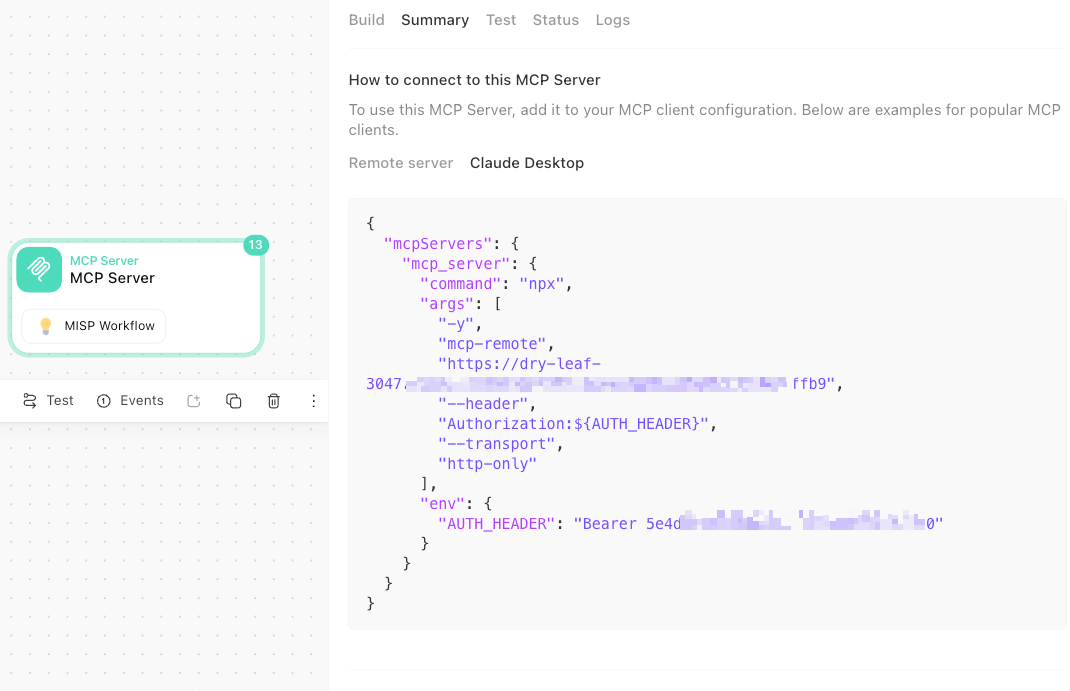
Open your Storyboard.
-
Drag in the MCP Server Action from the palette.
-
Select it and open the Summary pane.
-
Copy the client configuration snippet you see.
Step 2: How Do You Configure Claude Desktop as an MCP Client?
Claude Desktop doesn’t yet support remote MCP servers directly — so you’ll use mcp-remote as a proxy.
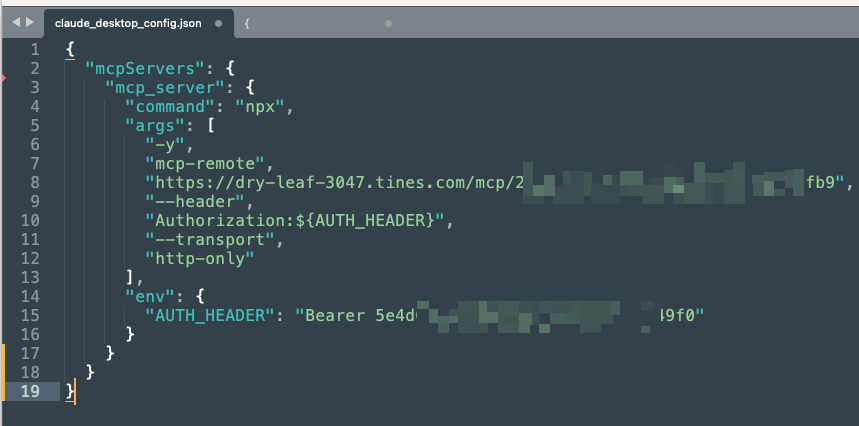
Here’s the JSON config you’ll paste into Claude’s Developer settings:
{
  "mcpServers": {
    "tines": {
      "command": "npx",
      "args": [
        "-y",
        "mcp-remote",
        "https://<tenant>.tines.com/mcp/<mcp-path>",
        "--header",
        "Authorization:${AUTH_HEADER}",
        "--transport",
        "http-only"
      ],
      "env": {
        "AUTH_HEADER": "Bearer <webhook-secret-or-api-key>"
      }
    }
  }
}
Replace:
-
<tenant>→ your Tines tenant name -
<mcp-path>→ the path from your MCP Server Action -
<webhook-secret-or-api-key>→ your secret for authentication
Step 3: How Do You Connect Cursor or VS Code as an MCP Client?
If your client supports remote MCP servers natively, you can use this simpler config:
{
  "mcpServers": {
    "tines": {
      "url": "https://<tenant>.tines.com/mcp/<mcp-path>",
      "headers": {
        "Authorization": "Bearer <webhook-secret-or-api-key>"
      }
    }
  }
}
Step 4: How Do You Test Your Tines MCP Server?
-
Launch your client.
-
Ask it to call one of your tools.
-
Watch the Storyboard run in real‑time.
If it doesn’t work, check:
-
Path + auth header values
-
Tines logs for incoming requests
-
That your Storyboard is published
What Are the Best Practices for Running a Tines MCP Server?
Here’s what I learned while experimenting:
| Watch Out For | My Tip |
|---|---|
| Security | Use least-privilege secrets and rotate them regularly. |
| Bursty Traffic | Tines can queue events, but watch rate limits if your AI client loops. |
| Latency | Cache heavy lookups when possible. |
| Versioning | Consider versioning your MCP endpoints (/v1/, /v2/). |
| Observability | Log and monitor MCP calls for debugging and insights. |
What’s the Bottom Line on Tines MCP Servers?
This is a huge unlock for AI + automation builders. Your Storyboards are no longer siloed — they’re now callable microservices that can power entire AI workflows.
So here’s my challenge to you:
- Pick one existing Tines Story and expose it as an MCP tool
- Connect it to Claude Desktop, Cursor, or your AI client of choice
- Share what you build — tag me or drop a link in the comments
And if you run into trouble, drop me a message. Let’s build some seriously cool AI‑powered automations together.
Frequently Asked Questions
What is the Model Context Protocol (MCP) and how does Tines use it? MCP (Model Context Protocol) is a standard that lets AI assistants connect to external “servers” that provide live data, tools, and actions. By adding an MCP Server Action to a Tines Storyboard, your automation workflows become callable tools that any MCP-aware client — such as Claude Desktop or Cursor — can invoke on demand.
How do you configure Claude Desktop to connect to a Tines MCP server?
Claude Desktop doesn’t support remote MCP servers natively, so you use mcp-remote as a proxy. Paste a JSON block into Claude’s Developer settings with "command": "npx", the mcp-remote args pointing to your Tines MCP URL (e.g., https://<tenant>.tines.com/mcp/<path>), and set the AUTH_HEADER environment variable to Bearer <your-api-key>.
What are the key operational best practices for running a Tines MCP server?
Use least-privilege secrets and rotate them regularly; watch for bursty traffic since AI clients can loop rapidly; cache expensive lookups to reduce latency; version your MCP endpoints (e.g., /v1/, /v2/) to avoid breaking changes; and log all MCP calls in Tines for debugging and observability.
Comments
No comments yet — be the first to share your thoughts.